Rotating replaces a key with a new one. The old value stops working immediately and the new one starts working immediately. There is no overlap, no grace period, and no undo.
That is the first thing to internalise, because it decides how you plan every rotation:
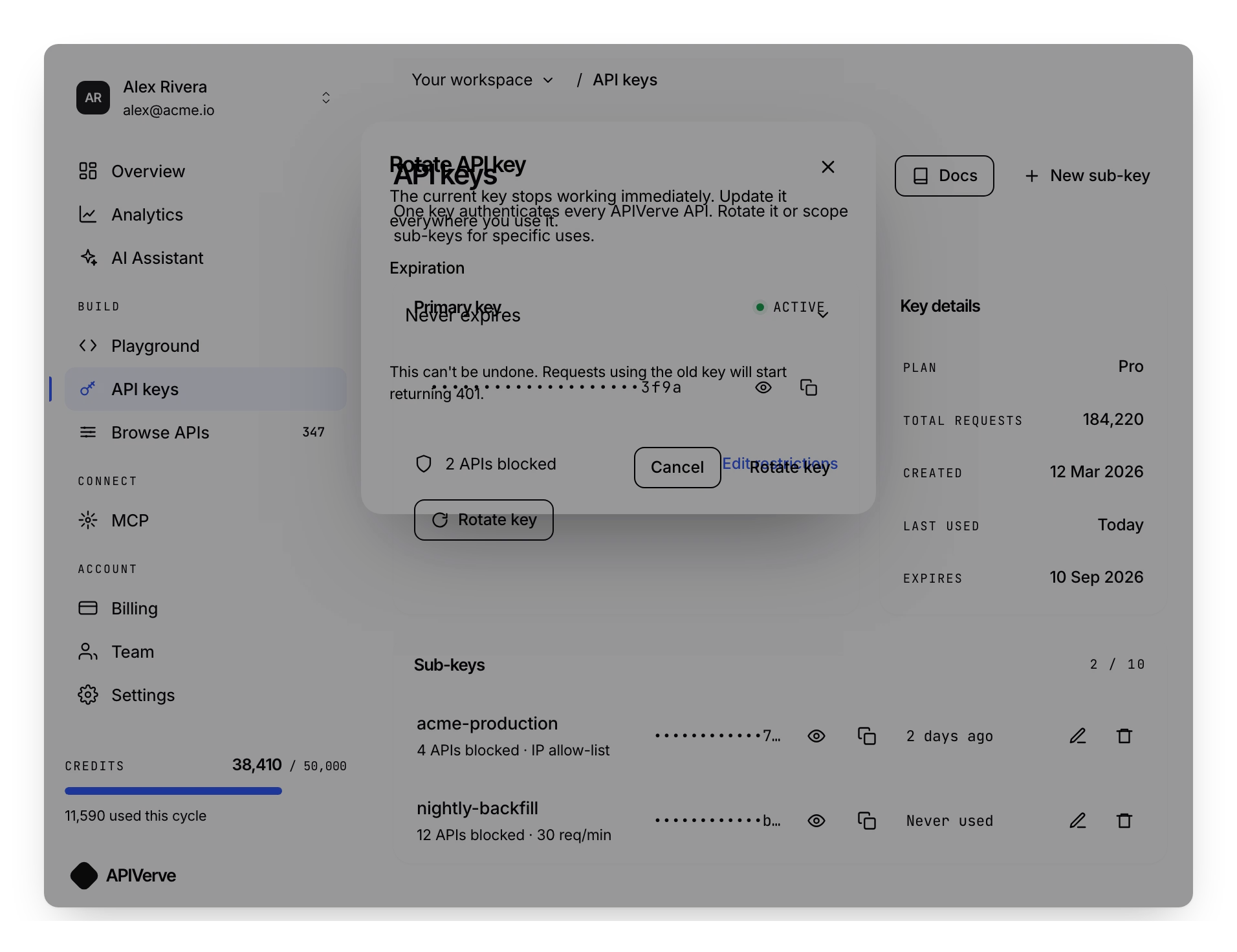
The moment you confirm, every request still carrying the old key gets 401. The dashboard says
it plainly — The current key stops working immediately. Update it everywhere you use it. — and
means it literally. Anything you cannot redeploy in the next few seconds will be down until you
can.
Rotating the primary key
On the API keys page, Rotate key. You confirm, the page reloads, and the new key is on the card ready to copy.
Two things worth knowing before you press it:
Only the workspace owner can rotate. Someone viewing your workspace through the team switcher will be refused. Keys belong to the account that owns them.
A suspended key cannot be rotated. If a key has been blocked for abuse, rotation is not the fix — that is a support conversation, and the dashboard will tell you so.
You can also set an expiry on the new key at the same time; the rotation dialog is the only place that choice is offered.
What survives a rotation
Rotation replaces the primary key's value. Almost everything else is attached to the account rather than to the string, and comes across intact:
| Credits and usage history | Unchanged — the balance is the account's, not the key's |
| Analytics and the call log | Unchanged, including calls made under the old value |
| Restrictions | Carried over — blocked endpoints, IP allow-list, rate cap |
| Sub-keys | Kept, and repointed at the new key |
| Plan, team and billing | Untouched |
| The forms key, on accounts that have one | Separate, and unaffected |
The sub-key row is the one worth a sentence of its own, because the intuitive answer is wrong in both directions. Sub-keys are not invalidated by a rotation — they keep working, because they bill through a pointer to the parent rather than by carrying its value. But the repoint happens just after the rotation rather than as part of it, so the honest advice is to make one call with each sub-key afterwards before you call the rotation done. It takes a minute and it is the only part of a rotation that is not instantaneous.
What does not survive is anything holding the old string: your servers, your CI, your teammates' machines and any platform you connected. That list is the actual work of a rotation.
Rotating without an outage
The instant cutover is fine for a single deployment you control. For anything else, use a sub-key and overlap instead:
- Create a new sub-key, scoped the same as the one it replaces.
- Deploy it. Both credentials are live and both work.
- Watch the call log until the old key stops appearing.
- Delete the old sub-key.
This is the only approach that works for anything with a slow rollout — a mobile app pending review, a client's integration on their release schedule, a device in the field. It is also the reason to move consumers onto sub-keys before you have a reason to rotate.
When a key has leaked
If a key is in a public repository, a client-side bundle, a screenshot, a log aggregator or a support ticket, treat it as compromised and rotate now. The sequence:
- Rotate immediately. Downtime is recoverable; an unbounded credential on your credit balance is not. Do not schedule this for a quieter moment.
- Redeploy everything holding the old key. Have the list ready before step one if you can.
- Check what was spent. Analytics shows credit usage per day and per endpoint; unfamiliar endpoints or a step change in volume tells you the key was used.
- Purge the exposure. Rotating fixes the credential, not the copy. A key in git history stays in git history for anyone who cloned the repository — and a rotated key in a public repo is still a signal about how your secrets are handled.
- Reduce the blast radius for next time. The consumer that leaked it gets a scoped sub-key, not the primary key.
Rotating is cheap. Your account, your plan, your usage history and your restrictions are unchanged — what moves is the key value your callers send.
Rotating on a schedule
Scheduled rotation is a reasonable discipline, and worth being honest about what it buys: it bounds how long an undetected leak stays useful. It does nothing about a leak you already know about — that one is rotated today.
If you rotate on a schedule, do it with sub-keys and the overlap pattern above, and let expiration enforce the deadline rather than a calendar reminder. A key that expires on its own is a rotation you cannot forget to do.
If your reason for rotating is a compliance requirement rather than a threat you have identified, say so in the schedule you write down. It makes the next person's decision easier.
The forms key
Accounts with embedded forms have a second, separate key for form submissions, which rotates the same way and independently. Rotating your API key does not touch it, and vice versa. If you have embedded a form somewhere you can no longer edit, remember that rotating its key breaks that embed with no grace period either.
After rotating
Three things to close the loop on:
Update every environment, not just production. Local .env files, CI secrets, the staging
deployment, the scheduled job, the teammate's machine. A 401 a week later is nearly always one
of these.
Store the new key where the old one should have been. A secrets manager or the platform's own environment configuration — not a config file in the repository, and not a chat message. See authentication for the storage rules.
Confirm it works before you close the tab. One call from the one call with the new key takes ten seconds and rules out a copy that picked up whitespace.
Troubleshooting
401 everywhere, right after rotating. Expected, and the diagnosis is simply which system you
missed. The body distinguishes the cases for you — unauthorized for a key that is not
recognised, and a sentence naming expiry for a key that lapsed. Work through the environments
list; it is nearly always CI secrets or a scheduled job.
401 from one service only. That service is still holding the old value. Check for a cached
build, a container that has not restarted, or a second copy of the key in a config file you
forgot about.
You closed the dialog without copying the new key. No harm done — the key is on the card on the API keys page, which is the canonical place to read it. You never need to rotate again just to see the value.
A key stopped working without you rotating it. Two possibilities worth checking in order: it had an expiry you had forgotten, or it was suspended, which the dashboard says explicitly and which support has to lift.
Everything works locally but fails in production. That is usually not a rotation problem at
all. A 403 there points at a key restriction — most often an IP
allow-list that does not include your production egress address.
Next
Sub-keys make rotation survivable at scale. Expiration automates the deadline, and key scoping limits what a leaked key could have done in the first place.