The dashboard is the account side of the product: your key, your credits, your usage, your plan. Nothing here is required to make a call — a key is enough — but everything you need to run an integration in production is here rather than in code.
Sign in at dashboard.apiverve.com. The Overview page is what you land on.
The Overview page
Four panels, chosen to answer the questions people actually open the dashboard to ask.
| Panel | What it answers |
|---|---|
| Credits | How much of this cycle's allowance is left, and when it resets |
| API keys | Which keys exist, and quick access to reveal or copy one |
| Requests · 24h and all time | Whether traffic looks normal |
| Recent requests | What was called just now, with status and latency |
Recent requests is the panel to look at first when something is broken. It shows the calls
that actually reached the API, so it settles the question every integration bug starts with: did
the request arrive at all? A failing call that does not appear here never left your network or was
rejected at the edge — see the HTML 403 case in errors.
Usage figures are aggregated rather than live-counted, so a call you made seconds ago may take a moment to appear. The balance reported alongside a call is always current — if you need the balance to the exact call, read it from there.
The pages
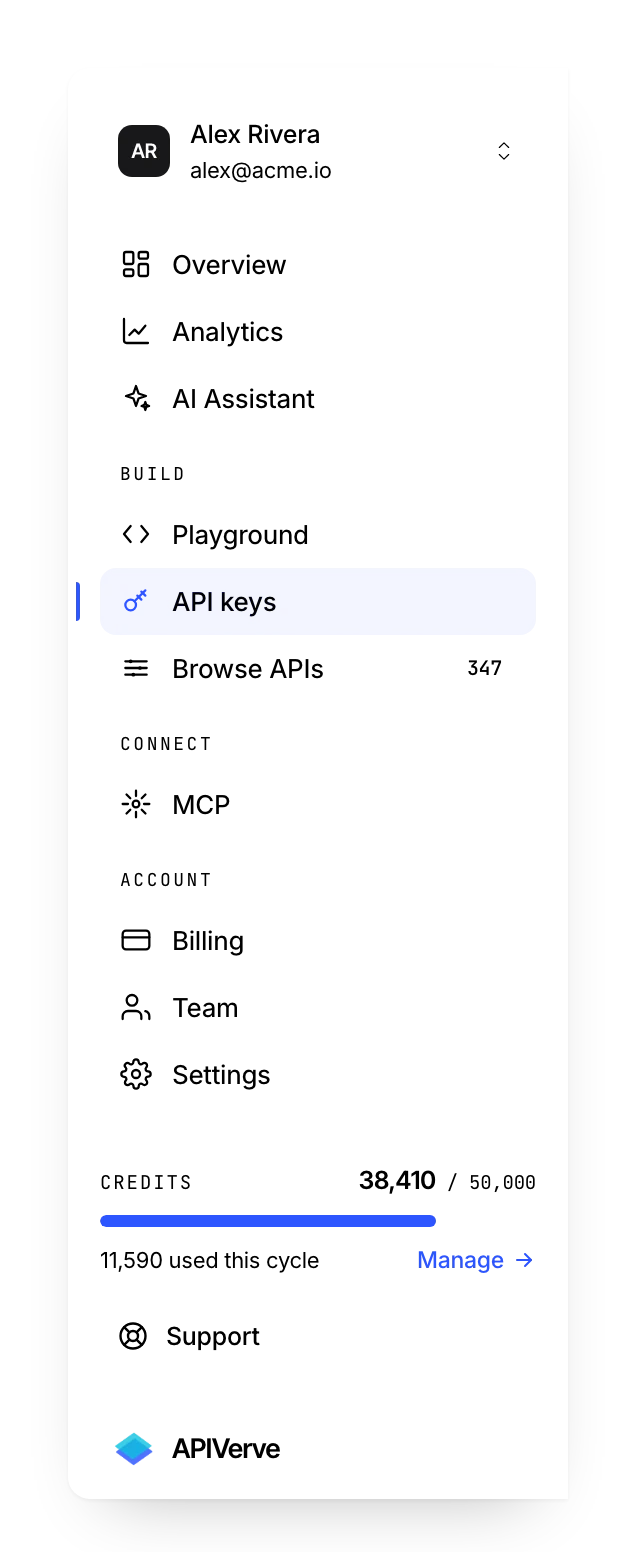
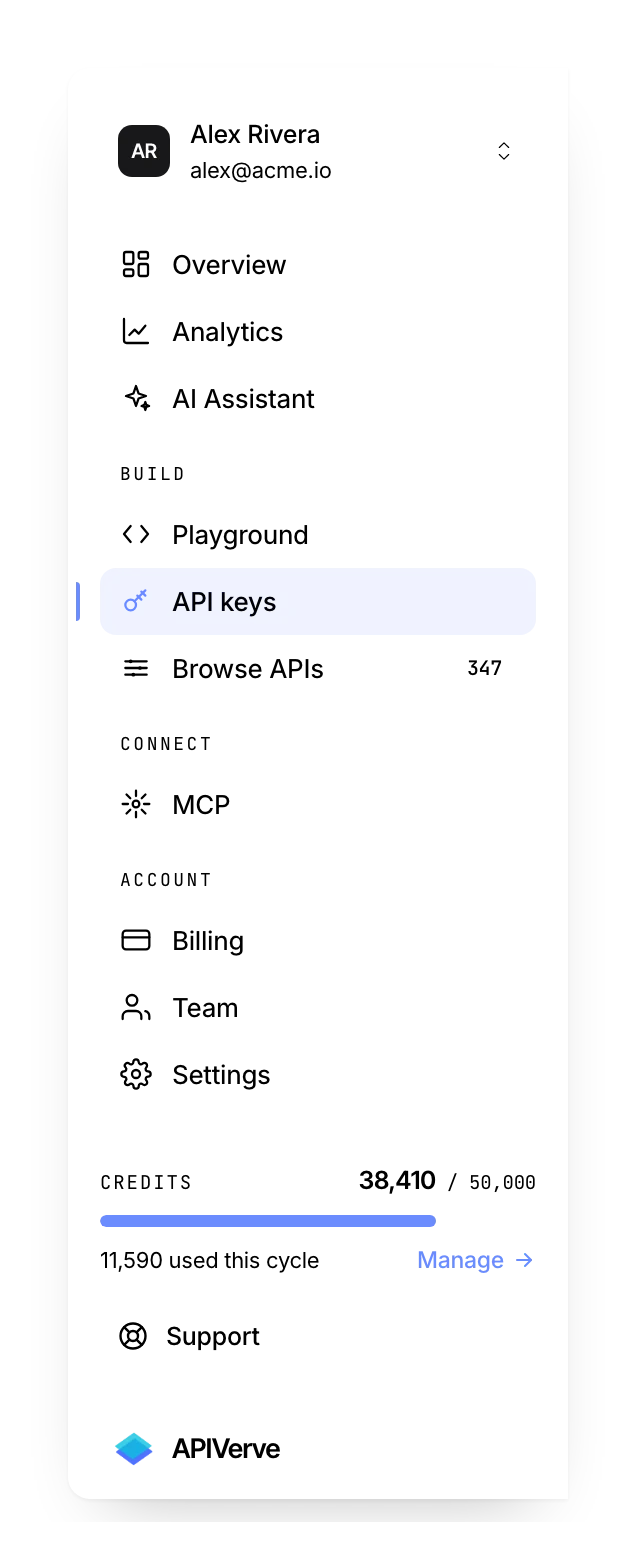
Everything else hangs off the sidebar.
API keys
The primary key, scoped sub-keys, restrictions, expiry and rotation. This is where you go to issue a credential for a new environment, and where you go to revoke one after a laptop goes missing.
Analytics
Credit usage over time, a per-API breakdown, the call log with status and latency, and the audit history of security-relevant account events. This is the page that tells you why your usage changed, not just that it did.
Playground
Any endpoint, called with your real key, from the browser. Fill in parameters, run it, read the response, and copy the equivalent request as curl or as code. It is the fastest way to answer "what does this endpoint actually return" without writing anything.
Browse APIs
The full catalog with search and category filters. Use it to find out whether something exists before you build it yourself.
Plans and Billing
The ceilings side by side, and the subscription, invoices and payment method behind them.
AI Assistant
A chat that knows the catalog: ask it which API fits a problem, ask for a snippet in your language, or paste a failing call and ask what is wrong with it.
Settings
Profile, preferences, notifications, password, two-factor and login history.
Teams
On plans that include it, shared workspaces so more than one person can hold keys and see usage without sharing a login.
What the dashboard is not
Three things people look for here and will not find, each because it lives somewhere better.
It is not required. A key is the whole integration. You can go months without signing in, and the only things that will eventually bring you back are a plan change, a rotation, or a question about usage.
It does not proxy your traffic. Every call your code makes goes directly to
api.apiverve.com. The dashboard reads the record of those calls; it is never in the path, so
nothing here can be a point of failure for your production requests.
It is not where limits are enforced. What a key may do is decided by the key's own restrictions and checked on every request. The dashboard is where you set those; it is not what applies them.
The one exception to all three is VerveKit — bins, mocks and forms are created here and nowhere else, deliberately, so a leaked key cannot delete them.
Getting around
Search — Ctrl/Cmd + K opens search from anywhere and jumps to any page or API.
Theme — the dashboard follows your system's light or dark setting, and you can pin it either way in Settings.
Mobile — every page works on a phone. The panels stack rather than shrinking, so checking a balance or revoking a key from somewhere other than your desk is a reasonable thing to do.
Workspace switcher — if you belong to a team, the switcher at the top changes whose account you are looking at. Someone else's workspace is read-only unless you have been given a role that says otherwise, and a few pages — the AI Assistant among them — only run in your own.
Where to start
If the account is new, three things in order:
- Copy your key from API keys and put it in an environment variable.
- Run something in the playground to see a real response before you write any code.
- Make the same call from your own code — quickstart has it in four languages.
After that, the dashboard is somewhere you visit occasionally rather than daily: to check usage, to rotate a key, or to change a plan.
Next
Quickstart is the four-minute version of step three. API keys covers the credential controls, and analytics covers reading your usage.