A key with no restrictions can call every endpoint your product offers, from anywhere, at your plan's full rate. That is the right default for one developer and the wrong one for a key that lives in a client's server, a contractor's laptop or a script you wrote once and forgot.
Scoping narrows a key without issuing a new one. Four restrictions, set per key — primary or sub-key — on the API keys page.
| Restriction | What it does | Plan |
|---|---|---|
| Block specific APIs | Stops the key calling the endpoints you name | Pro and above |
| Block VerveKit tools | Turns individual VerveKit tools off for the key | Pro and above |
| IP allow-list | Only the addresses you list may use the key | Mega |
| Custom rate limit | Caps the key below your plan's per-minute ceiling | Mega |
It is a deny-list, not an allow-list
This is the single most important thing to understand about scoping, and it is the opposite of what most people assume.
You do not list what a key may reach. You list what it may not, and everything else stays allowed. The editor says so plainly:
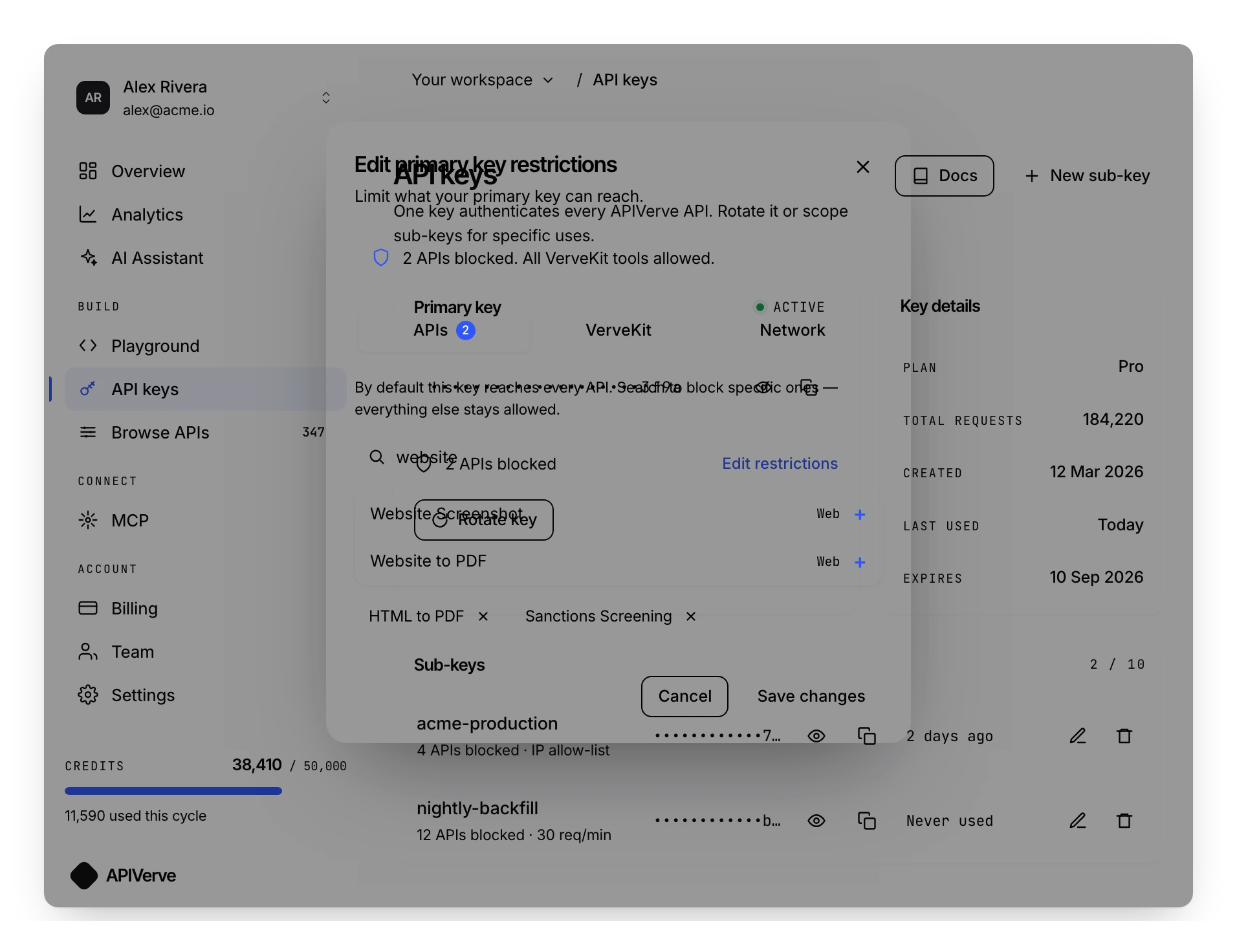
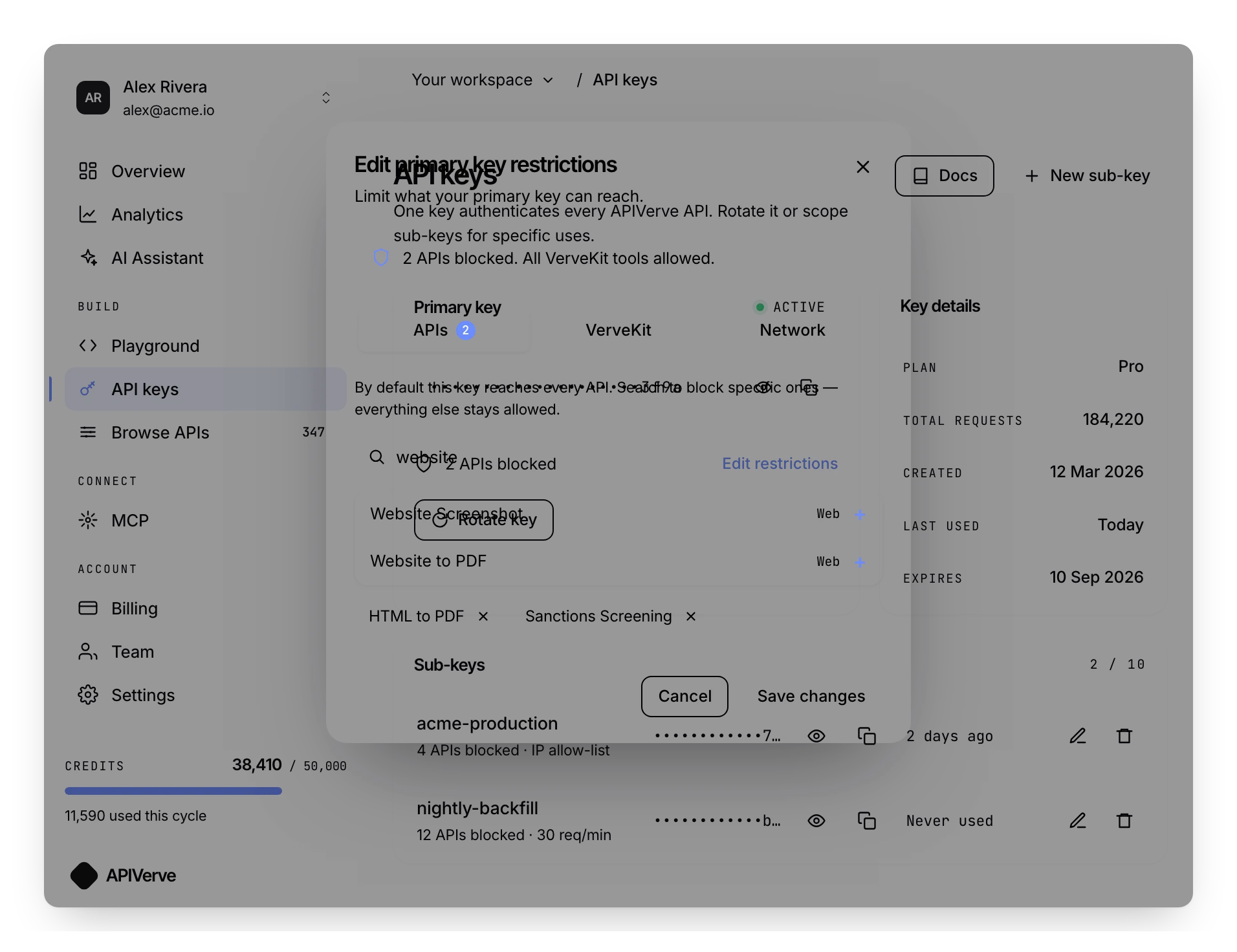
The consequence lands later. When a new endpoint ships, every existing key can call it on launch day, because it is not on anybody's block list yet. If a key exists to do exactly one job, a deny-list will not hold that line as the catalog grows — a sub-key created for that job, blocked down to what it needs, and revisited when you add capability, will.
A blocked endpoint stops that key calling it. It does not stop whoever holds the key from asking you for a wider one, and it does nothing about a key that has leaked. Scoping limits blast radius; rotation and separate keys per environment are what limit exposure.
Blocking endpoints
Search the catalog in the restrictions editor and select what this key must not reach. A key with nothing selected reads No APIs blocked — full API access.
A blocked call is rejected before it runs, so it costs nothing:
{
  "status": "error",
  "error": "Access to weather is blocked for this API key",
  "data": null
}
That comes back as 403. It is worth being precise about, because three different situations
produce three different statuses and people conflate them constantly:
| Status | Meaning |
|---|---|
401 | The key is missing, invalid, expired or suspended |
403 | The key is fine, but not permitted for this call — a block or an IP allow-list |
429 | Rate limited, or the account is out of credits |
A 403 naming an endpoint is a scoping verdict and nothing else. Do not send the user to sign in
again; check the key's restrictions.
Blocking VerveKit tools
The same mechanism covers the platform tools, independently of the catalog. Four things can be blocked here:
| JSONBin | Reading and writing JSON bins |
| MockServer | Calling and managing mock endpoints |
| Forms | The embedded forms surface |
| GraphQL | The GraphQL endpoint |
A key issued to a client so they can call two endpoints has no business reading your configuration bins, and this is where you say so. Blocking GraphQL is the one worth thinking about separately: a single GraphQL request can reach several endpoints at once, so a key you have carefully scoped at the REST level is worth checking against it.
Turning off every tool is stored as a single wildcard rather than a list, so the restriction keeps meaning "no VerveKit" as tools are added, instead of quietly reopening. That is the one place the deny-list generalises the way you would want, and it is worth preferring the all-off switch to ticking tools individually if the key has no VerveKit job at all.
IP allow-lists
On Mega, a key can be pinned to the addresses that are allowed to use it — one per line, plain addresses or CIDR ranges:
203.0.113.7
198.51.100.0/24
An empty list means no restriction. A non-empty list means exactly what it says: anything not
matched is refused with 403 and IP address not allowed for this API key, before the call
runs.
This is the strongest restriction available, because it stops a leaked key from being usable anywhere but your infrastructure. It is also the one that breaks deployments, in three predictable ways:
Your egress address is not what you think. Serverless platforms, container hosts and CI runners egress from pools that change. Pin to a NAT gateway or a static egress address you control, not to whatever address a test connection reported once.
The list is IPv4. Ranges are matched as IPv4 addresses, so a server that egresses over IPv6 will not match an IPv4 entry — it is refused rather than falling back. If your host is dual-stacked, make sure outbound traffic is pinned to the address family you listed.
It cannot be tested from your desk. A call that works from your own machine proves nothing about a key pinned to your production egress — you are not calling from that address. Roll an allow-list out with a sub-key first and watch it before applying one to a key everything depends on.
Per-key rate limits
Also Mega: a key can be capped below your plan's per-minute ceiling. Blank means the plan default.
The ceiling only goes down. A key cannot be given more headroom than the plan allows, so this is a tool for protecting the rest of your traffic rather than for buying more.
Where it earns its keep is any workload that would otherwise consume the whole allowance in a
burst: a nightly backfill, a bulk import, a customer-facing widget you do not control the traffic
shape of. Cap that key at a fraction of your ceiling and your interactive traffic keeps its
headroom. See rate limits for how the limiter behaves and what the 429 looks
like.
Each key gets its own bucket, so a sub-key at 30/min does not consume the primary key's window.
What scoping does not cover
Three gaps, all better known now than discovered during an incident.
Restrictions do not inherit. A sub-key carries its own deny-list and ignores the primary key's, so tightening scope on the primary key does not tighten anything a sub-key can reach. If you block an endpoint account-wide in your head, block it on every key that exists.
Nothing here bounds spend. A key can be capped in requests per minute, but not in credits. Any key on the account can spend the whole monthly allowance given enough minutes — the rate cap decides how fast, not how much. See plans.
The dashboard is not restricted by this. Scoping applies to API calls made with a key. What a person can do when signed in is decided by their team role, which is a separate system with separate rules.
A sensible default
Most accounts converge on the same shape once they have been running a while:
- The primary key stays unrestricted and lives in exactly one place you control — your own production environment.
- Every other consumer gets a sub-key: one per client, per environment, per scheduled job.
- Each sub-key is blocked down to the endpoints that job actually calls, and rate-capped if it is bulk work.
- Anything outside your network gets an IP allow-list, if your plan includes it.
The value shows up on the bad day. A key that can only call two endpoints, only from one address, only at 30 requests a minute is a small problem when it leaks. An unrestricted primary key in the same position is your whole account.
Next
Sub-keys are the credentials these restrictions are usually applied to. Rotation covers replacing a key that has been exposed, and expiration covers keys that should not outlive their purpose.